The Ultimate Guide to How to Use Amazon Promo Codes 2025

Buying guides, news, and the promo code know-how that actually saves you money.


Article summary
Learn how to apply promo codes on Amazon at checkout with our Step-by-step guides for desktop and mobile. Find promo codes on Koupon.ai.
Amazon promo codes: How to use them on desktop and mobile
You might be used to shopping on Amazon without thinking twice, but skipping the step of using promo codes means missing out on big savings. Even without big sales like Black Friday and Cyber Monday around the corner, you can still save big using Amazon Promo Codes. I'm here to guide you through everything you need to know, ensuring you save big every time you shop. If you are already an Koupon.ai user, you can refer to this article to check on how to use Amazon promo codes instead.
In this article, I'll break down how to use Amazon promo codes across different devices and platforms, as Amazon's user interface is constantly evolving. To save time, jump ahead to the section that matches your platform and device.
- Use Amazon Promo Codes on the Desktop Website
- Use Amazon Promo Codes on the Mobile App
What are Amazon promo codes?
Amazon promo codes are short combinations of letters and numbers designed to unlock additional discounts. The discounts usually come in a few primary forms:
- Percentage Discounts: These codes lower the cost of an item by a specific percentage, like 50% off. They're some of the most popular Amazon promo codes, especially for higher-priced items where you really feel the savings.
- Fixed Amount Discounts: These offer a set dollar amount of your purchase, like $5 off a $25 order. You can often find them on Amazon product detail pages.
- Free Shipping Codes: These are a lifesaver for non Amazon Prime members who would otherwise have to pay for shipping. However, they usually apply to orders that meet a minimum spending requirement.
- Hidden Amazon Promo Codes: This form of code is a bit different. They are not always available to the public, and sometimes you would have to follow specific social influencers where they post these promo codes daily. Or you can find these codes from us at Koupon.ai.
However, to note, sometimes Amazon does not let you stack different promo codes and discounts together.
If you've found a valid Amazon promo code through the methods above, keep in mind that the Amazon's user interface is constantly changing—often making it tricky to locate where to actually use the promo code. And I will break down how to use the Amazon promo codes based on the different devices or even platform you might be using.
How to use Amazon promo codes on the desktop website:
To use an Amazon promo code on the platform's desktop website, there are two ways to go about applying the code:
- You can add an item to cart in the product detail page, and then use the promo code.
- You can click the "buy now" button on the product detail page, and then use the promo code.
Method 1: Using a promo code after adding an item to your cart
- Find Your Item: Start by selecting the product you want to purchase. On the product detail page, look for on-page coupons to clip. These coupons can unlock extra savings—don't miss them!
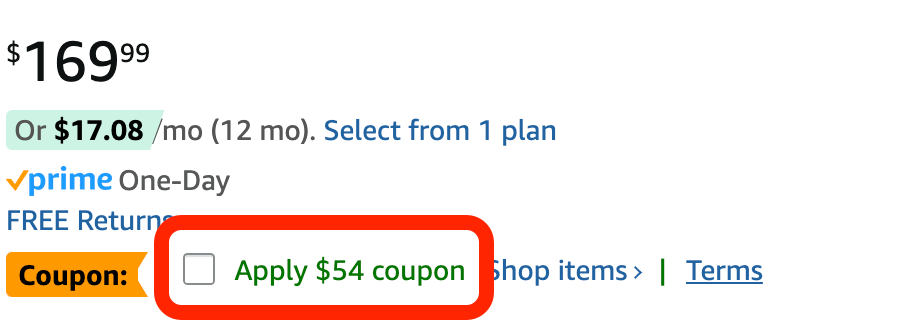
- Add to Cart: After clipping any available coupons (or if there are none), click "Add to Cart" to proceed.
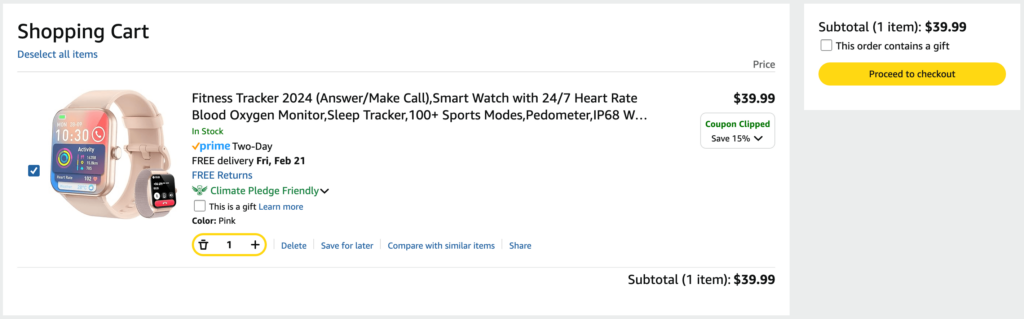
- Check Your Cart: Go to your shopping cart and double-check if the coupon has been applied. To use an additional promo code, click the "Proceed to Checkout" button.
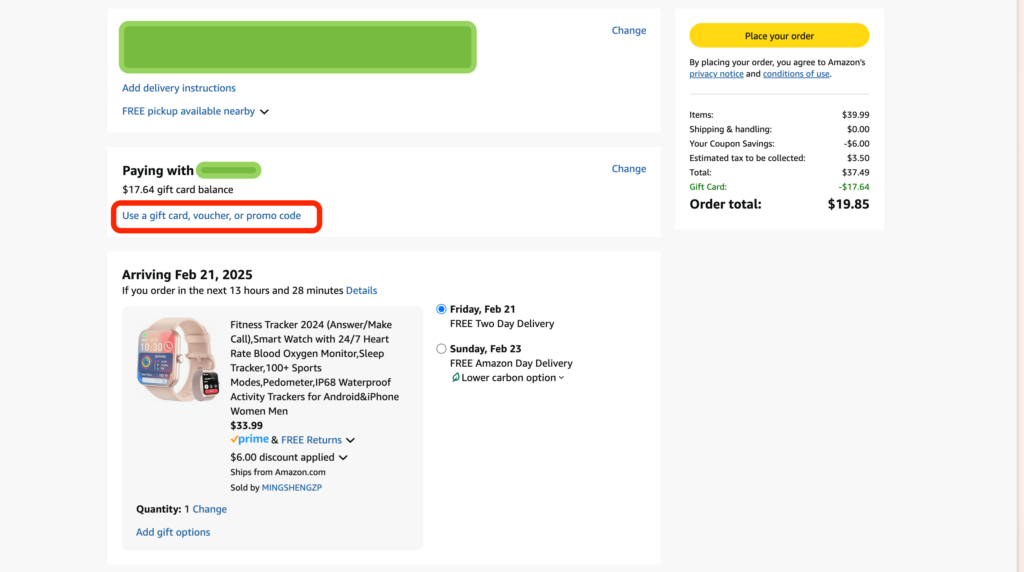
- Enter Your Promo Code: On the checkout screen, locate the section labeled "Paying with…". Click the blue link titled "Use a gift card, voucher, or promo code"—it's a bit hidden, but you've found it.
- Apply the Code: Once the section expands, you'll see a text field labeled "Enter a gift card, voucher, or promotional code". Paste your promo code here and click the "Apply" button on the right. Don't forget this step, or the code won't be applied!
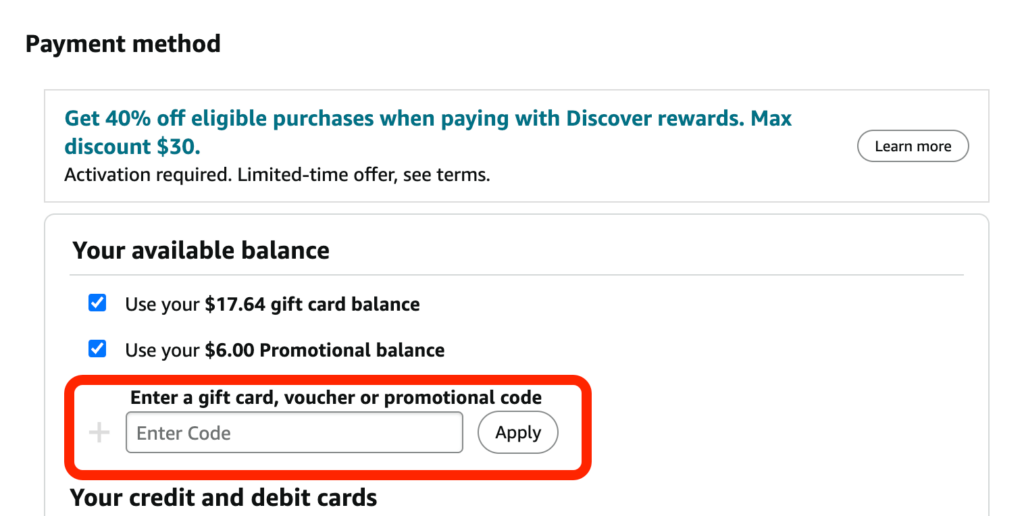 Paste your Amazon promo code and click Apply to activate the discount.
- Complete Your Purchase: That's it! Your promo code has been successfully applied, and you're ready to complete your order.
Method 2: Using a promo code after clicking the Buy Now button on the product detail page.
If you prefer a faster checkout process, you can use the "Buy Now" button and still apply your promo code. Here's how:
- On the Amazon product detail page, click the "Buy Now" button to start a quick checkout.
- Quick Checkout Modal: A pop-up modal will appear for quick checkout. In this modal, find and click the "Pay with" section.
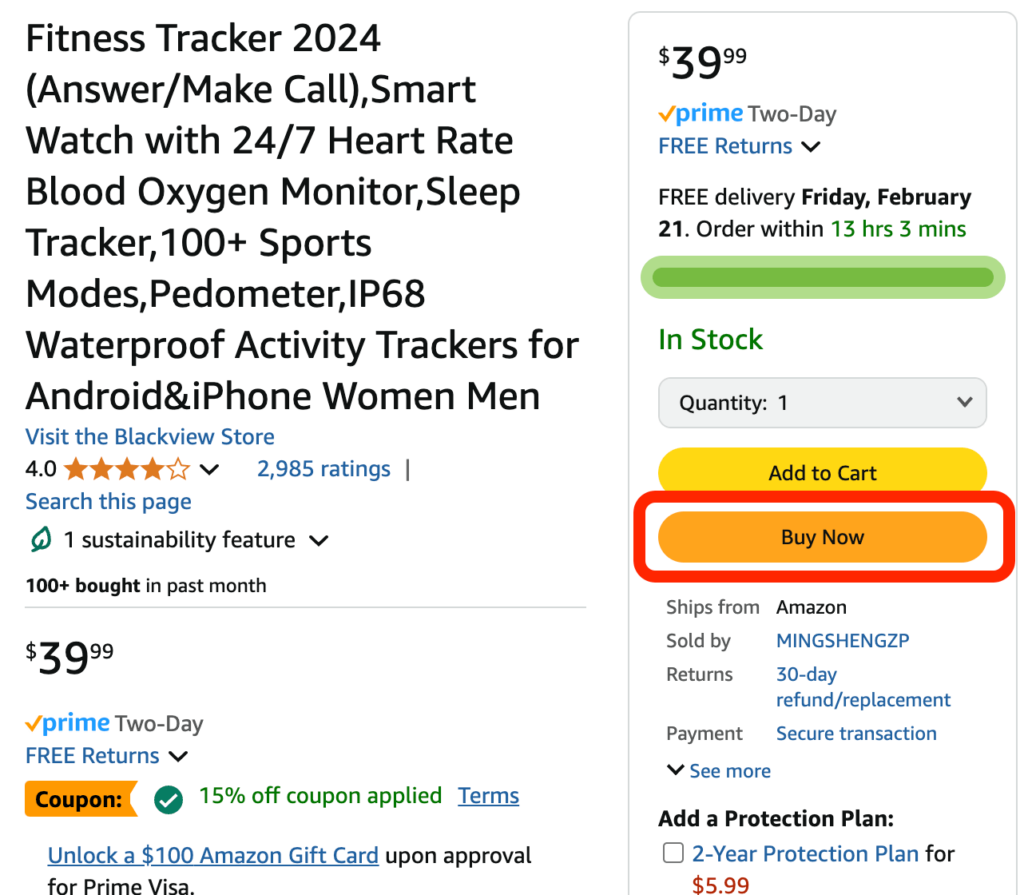
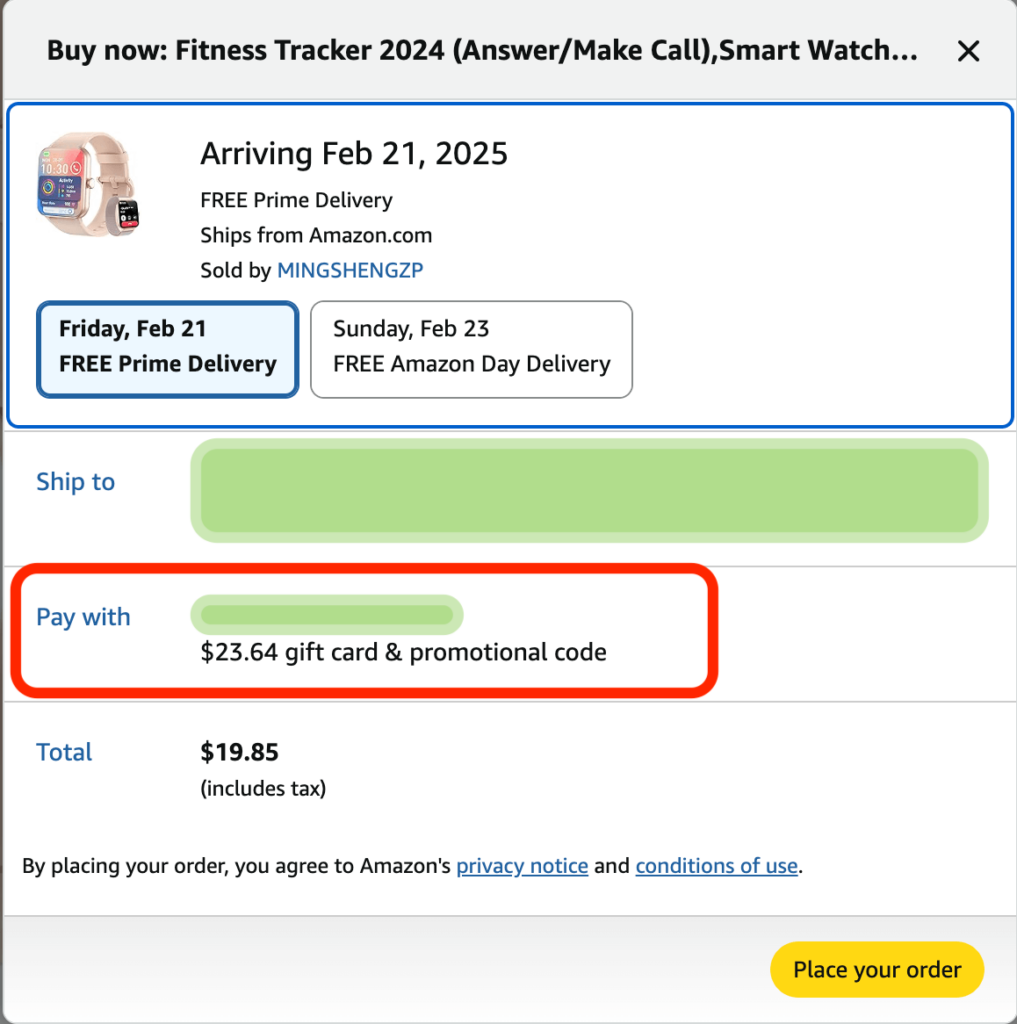
- Enter Your Promo Code: Scroll to the bottom of the modal, where you'll see a text field labeled "Gift cards & promotional codes". Paste your promo code here and click the "Apply" button to activate the discount.
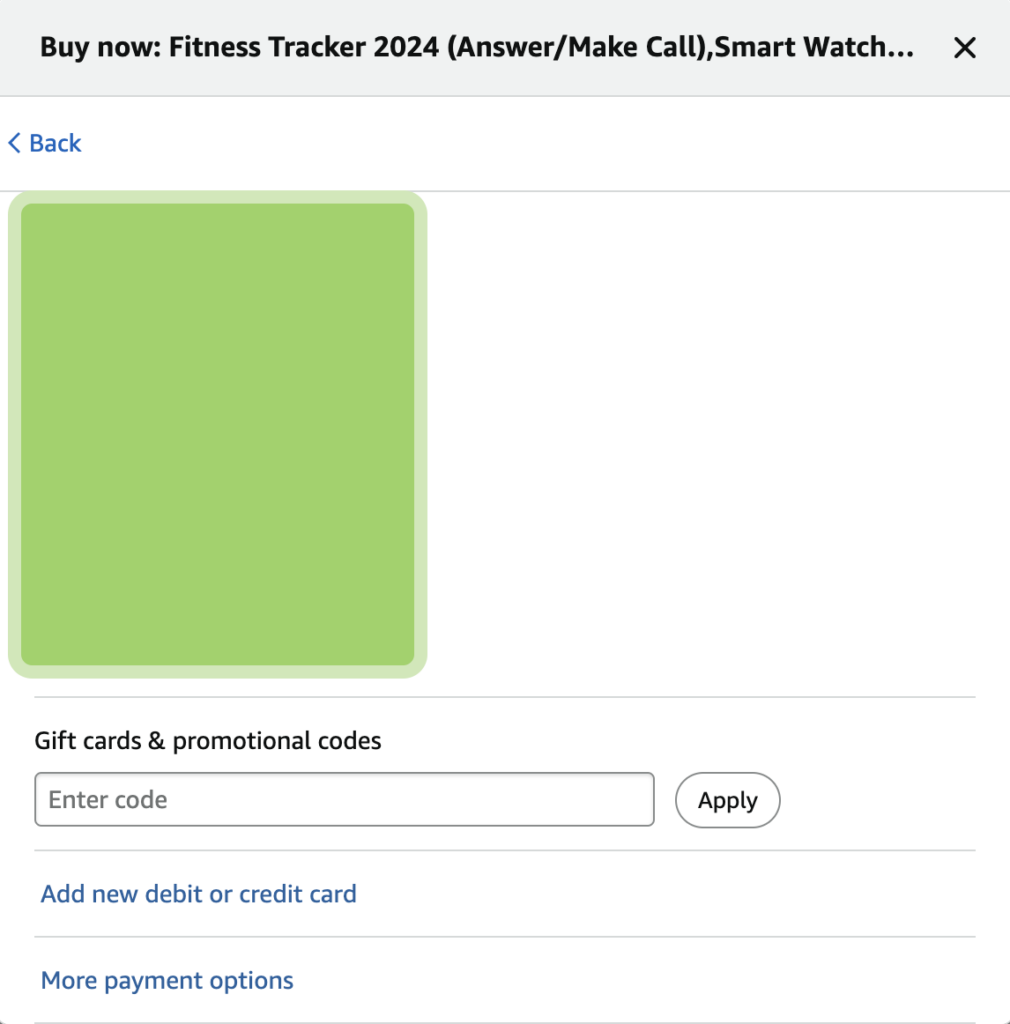
- Complete Your Purchase: Once the code is applied, proceed with your payment to finalize the order.
How to use Amazon promo codes on the Amazon app:
Amazon's user interface varies across platforms. Next, we'll dive into the iOS app to ensure you're getting the discounts you deserve with promo codes. Same as the website, you can:
- add an item to cart in the product detail page, and then use the promo code.
- click the "buy now" button on the product detail page, and then use the promo code.
Method 1: Using a promo code after adding an item to your cart
After adding an item to your cart, click the "Proceed to Checkout" button.
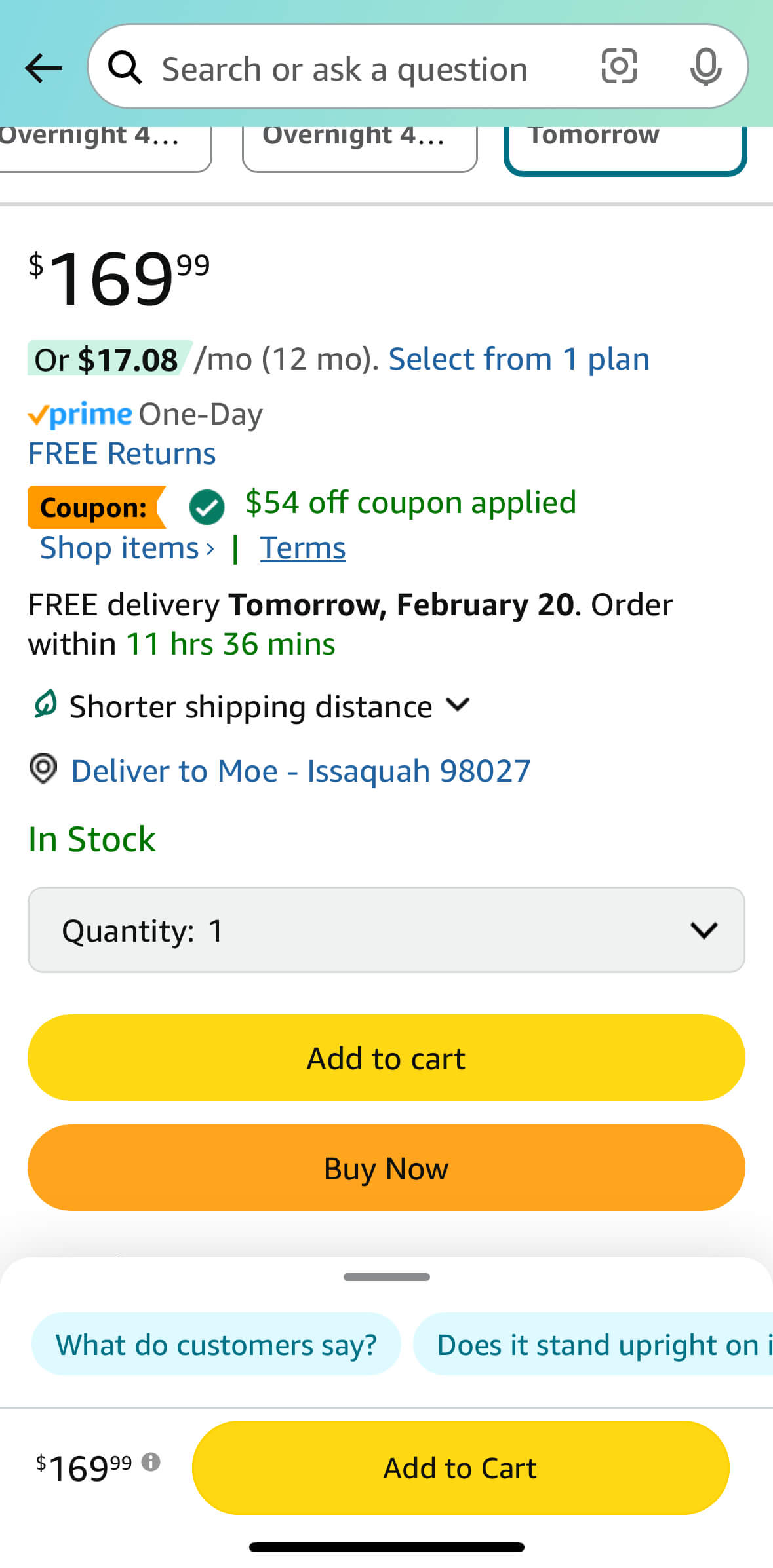
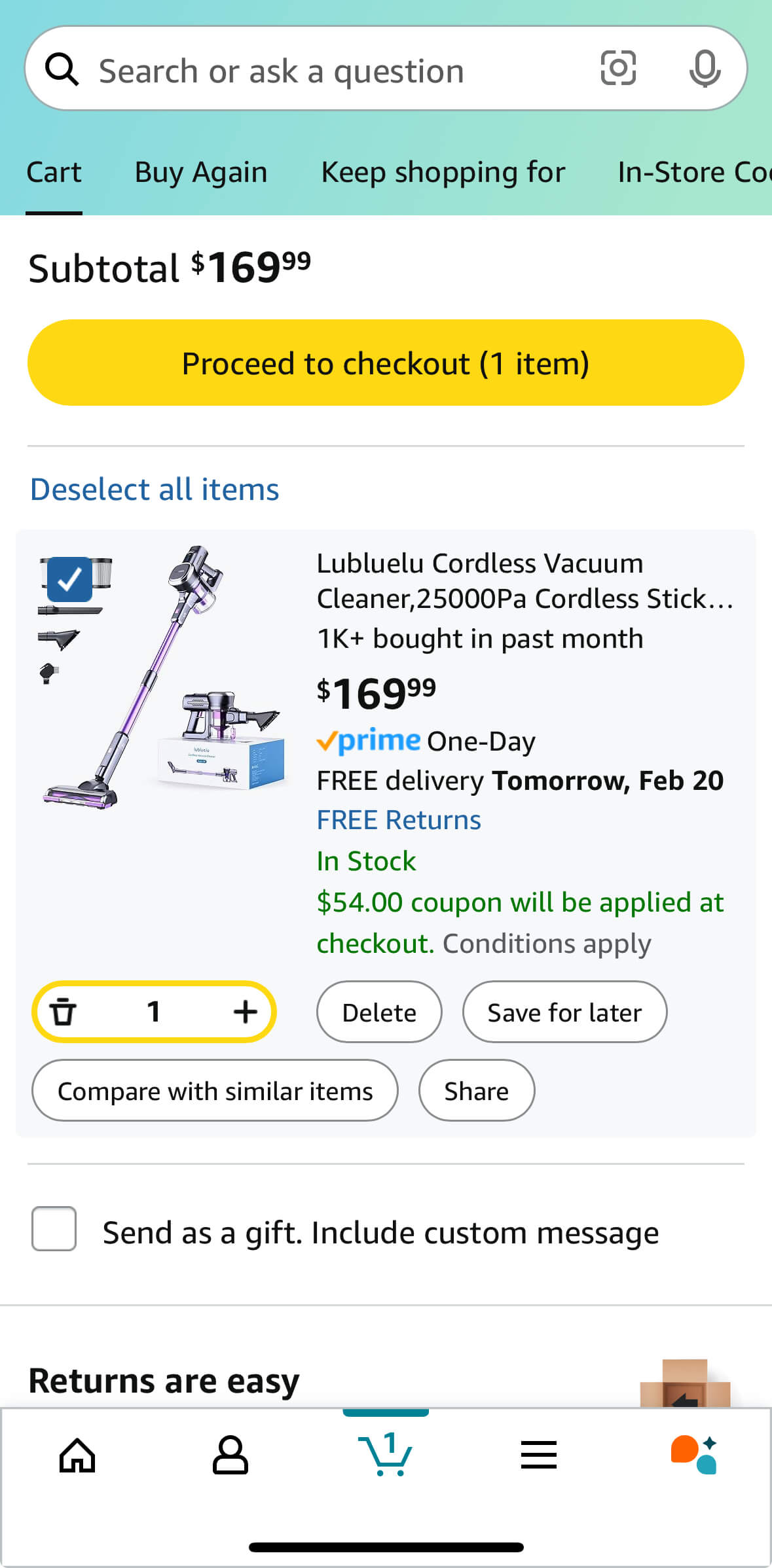
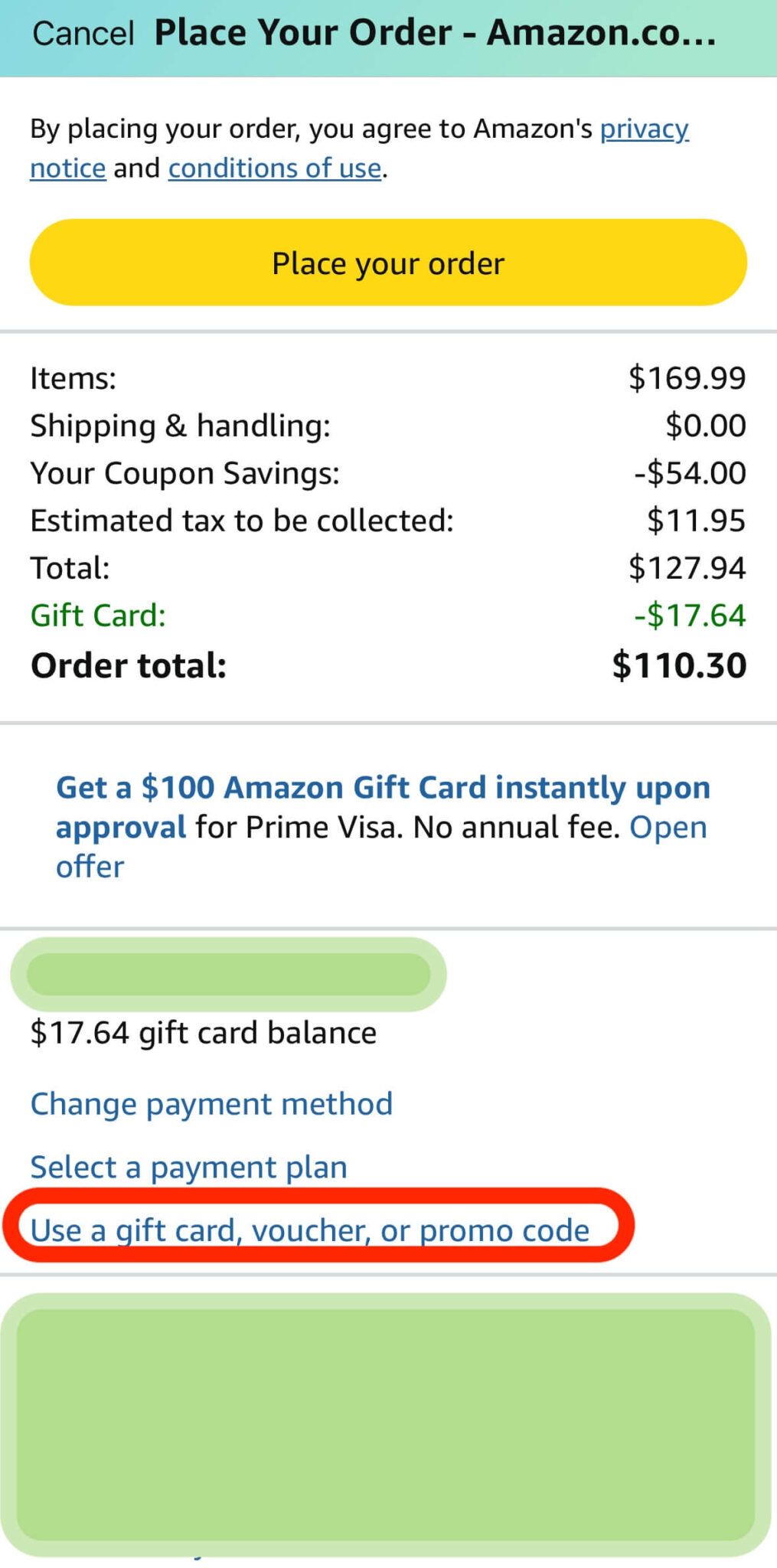
On the next screen (where you finalize your order), follow these steps:
- Scroll down to the "Pay with" section.
- Click the blue link labeled "Use a gift card, voucher, or promo code".
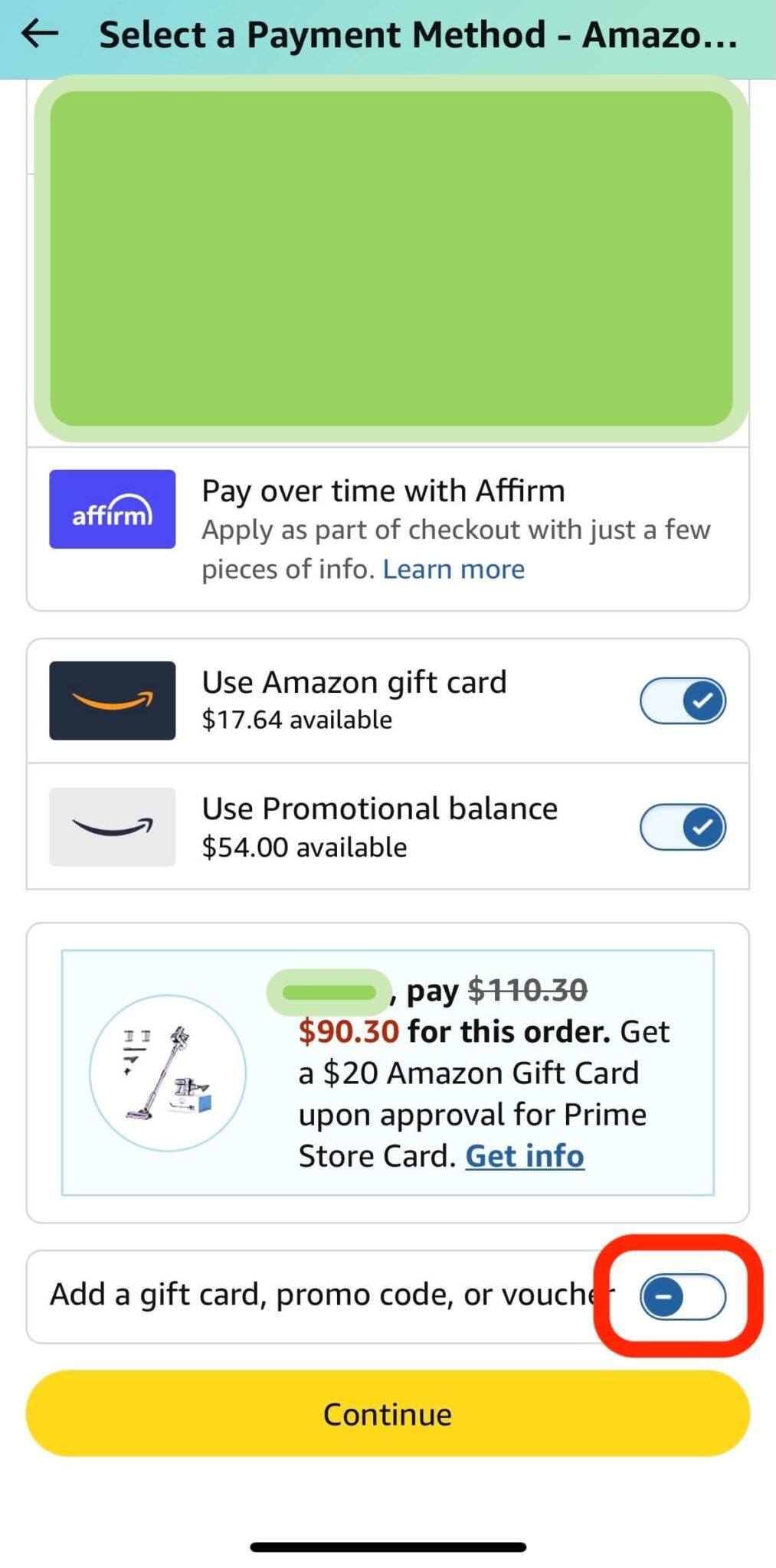
Here's where Amazon's interface gets frustrating—the promo code field feels intentionally hidden. To find it:
- Scroll to the bottom of the new screen.
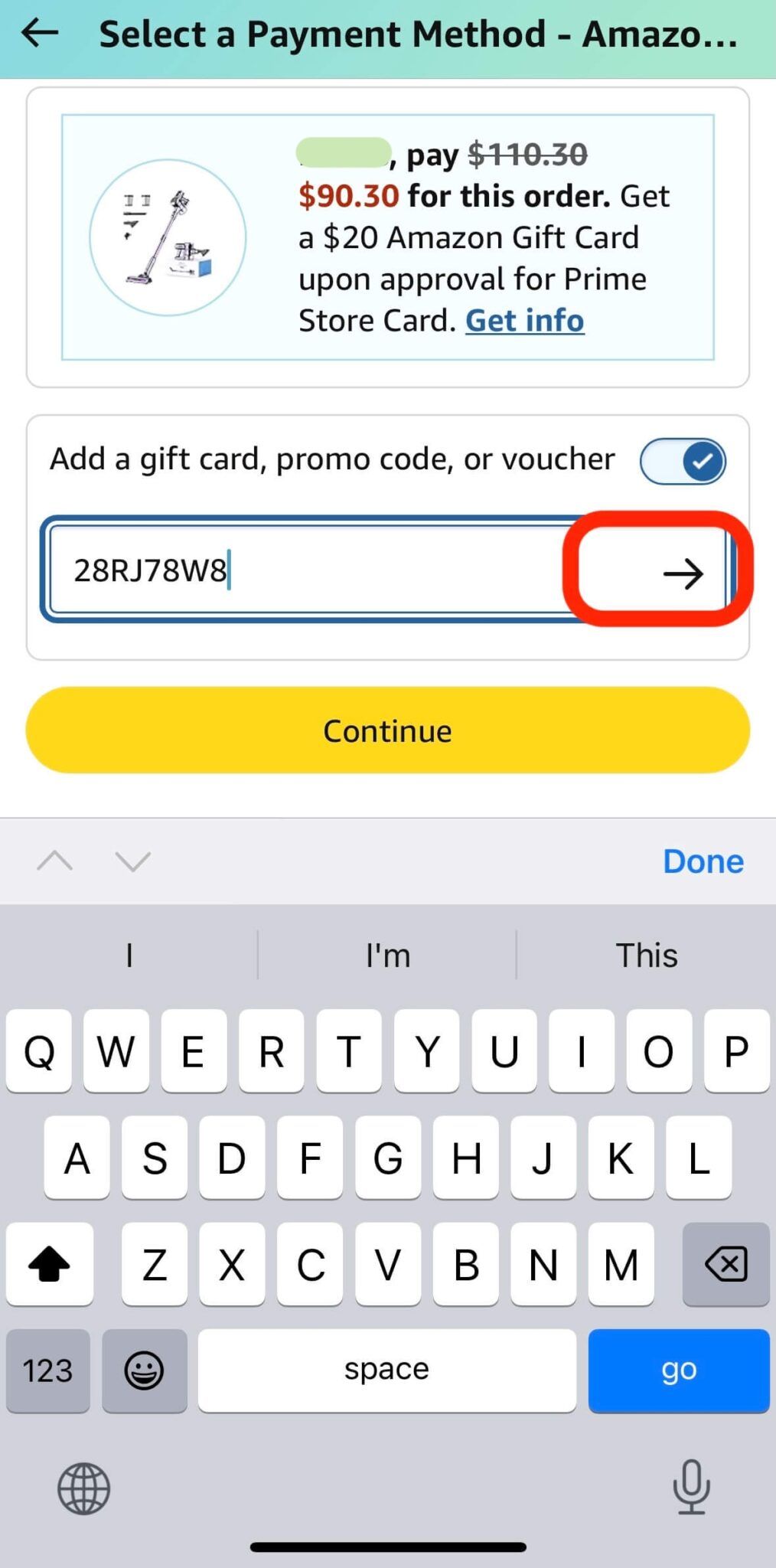
- Look for the toggle labeled "Add a gift card, promo code, or voucher".
- Click the toggle to expand the text field.
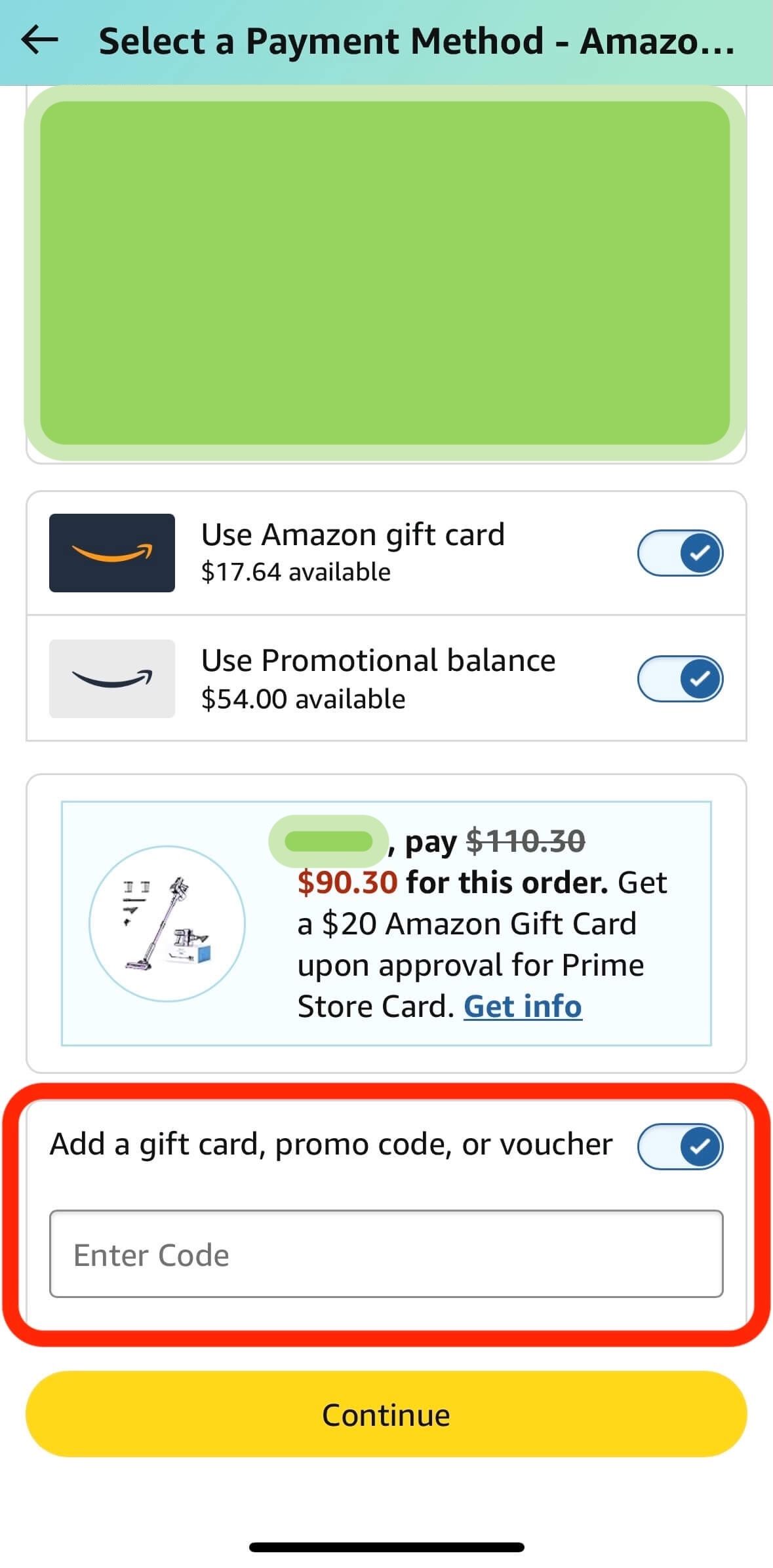
Critical steps to apply your promo code:
- Enter your code in the text field.
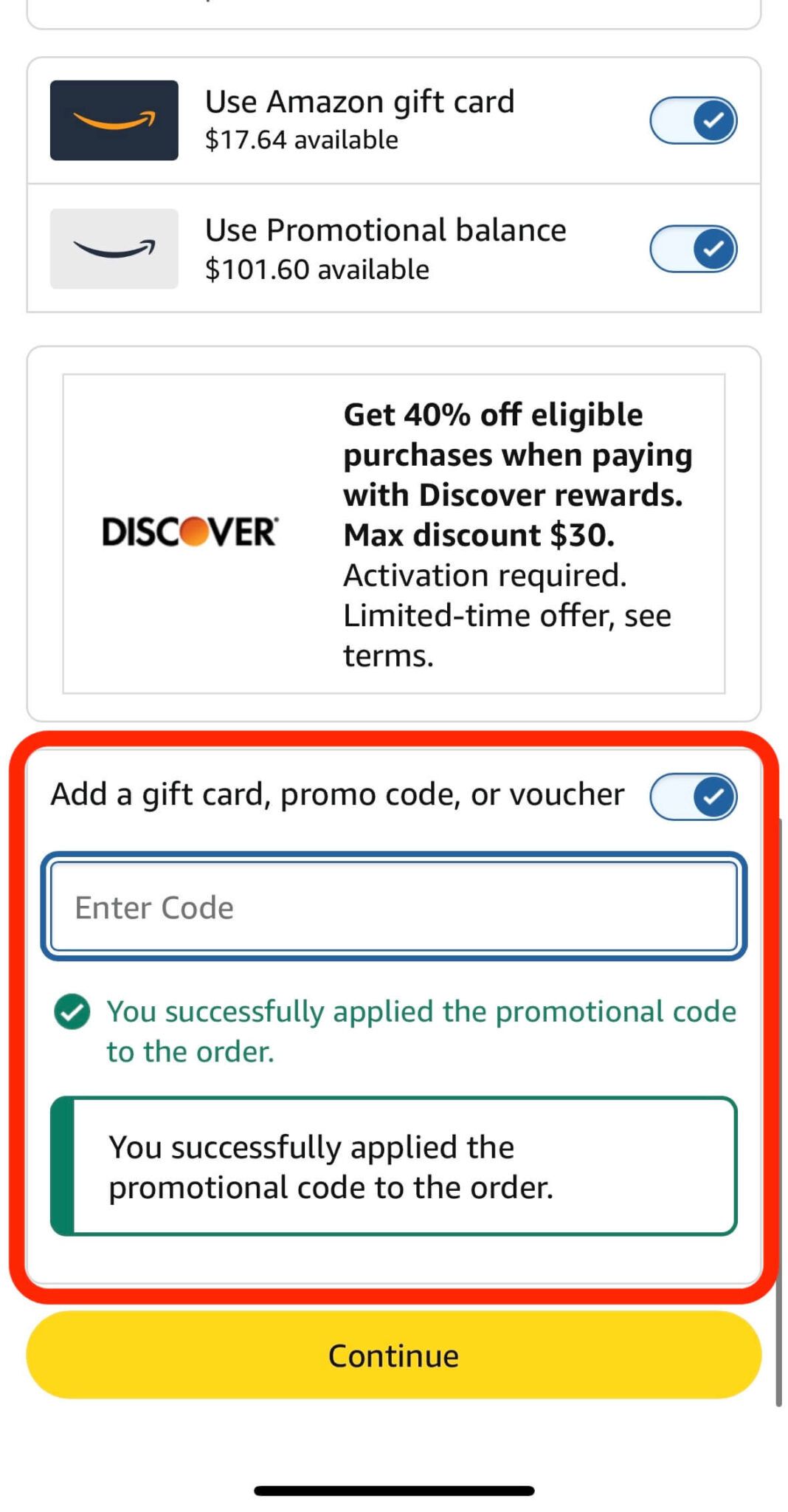
- Click the arrow button (NOT the "Continue" button) to activate the code.
- A success message will confirm your discount is applied.
Pro tip: Missing the arrow button is a common mistake—double-check before proceeding!
Method 2: Using a promo code after tapping the Buy Now button on the product detail page.
For a faster checkout on the Amazon app, tap the "Buy Now" button and apply your promo code in seconds. Follow these steps:
- Tap the "Buy Now" button on the product page.
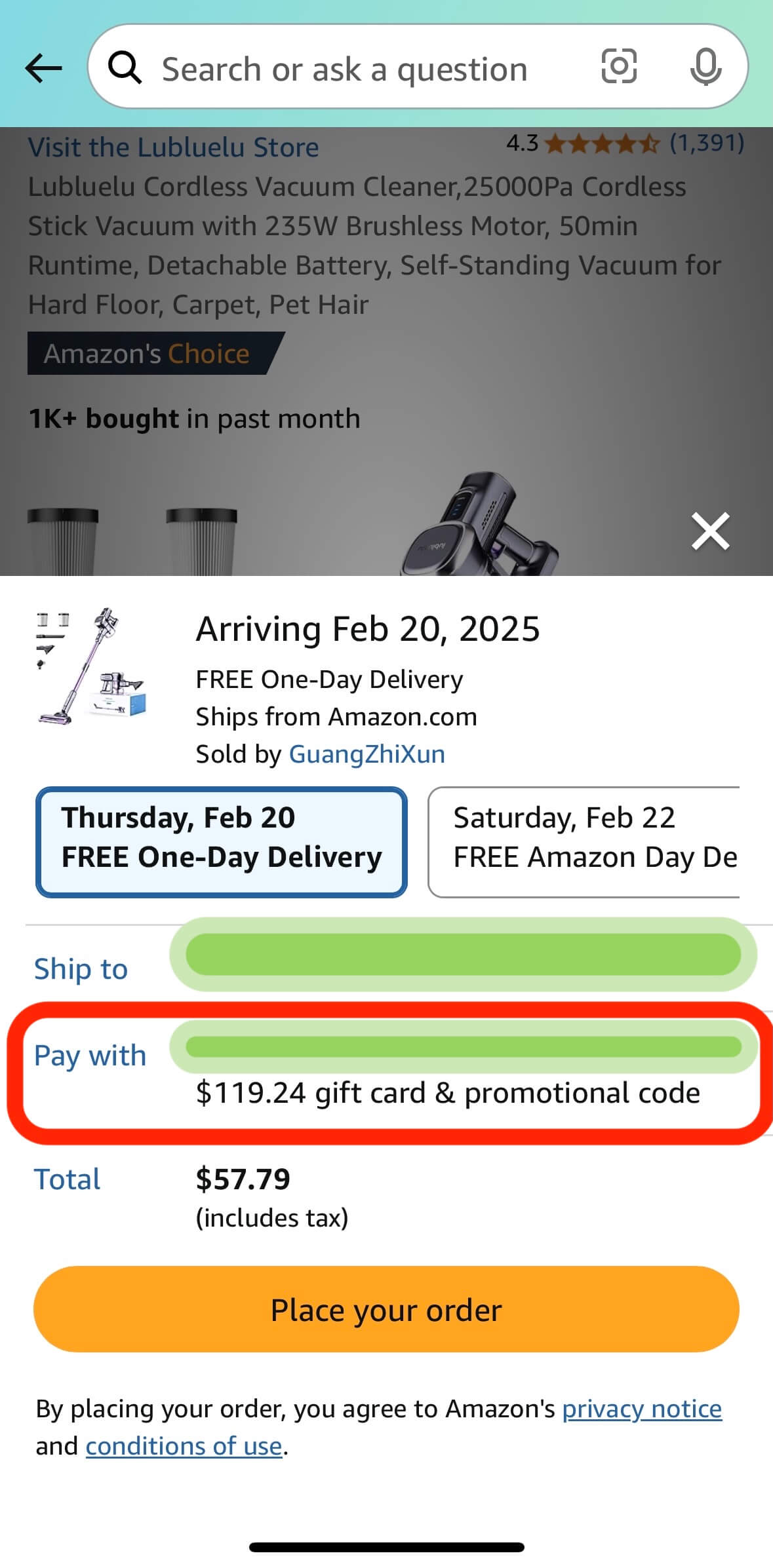
- In the pop-up modal, tap the "Pay with" section.
- Scroll to the bottom and toggle the "Add a gift card, promo code, or voucher" option.
Key reminders:
- After toggling, enter your promo code in the text field.
- Do NOT skip the toggle step—the code field won't appear otherwise.
- Confirm the code applies before finalizing payment.
Critical steps to apply your promo code:
- Enter your code in the text field.
- Click the arrow button (NOT the "Continue" button) to activate the code.
- A success message will confirm your discount is applied.
- And then click the "Continue" button.
Pro tip: Missing the arrow button is a common mistake—double-check before proceed.
Conclusion: Master Amazon promo codes on any device.
Mastering Amazon promo codes doesn't have to feel like a scavenger hunt. With these steps, you can confidently apply discounts whether you're using the desktop site, mobile app, or "Buy Now" shortcut. Always double-check promo code terms (expiry dates, product eligibility) to avoid checkout hiccups. For fresh, working codes, bookmark Koupon.ai—we streamline the hunt so you can focus on saving. Ready to unlock your next Amazon promo code? Start browsing the Amazon promo codes hub or check trending deals and deals under $20 for savings across categories.
If you have any more question, feel free to check out our blogs and FAQ to find more relevant information on how to save more money!
Koupon.ai is a participant in the Amazon Services LLC Associates Program and other affiliate programs. We may earn from qualifying purchases. Content from Amazon and other retailers is provided 'as is' and subject to change. All trademarks are the property of their respective owners.